Many Google products used by affiliates, such as Google Analytics (GA4), Google Tag Manager (GTM), and Google Search Console, require users to have a Google account before access can be granted. You can choose to use a dedicated Gmail email address or you can link your Easterseals work email address to a Google account.
To link your Easterseals email address, follow the steps below:
- Log out of all other Google/Gmail accounts first (or open an Incognito window)
- Go to: https://www.google.com/accounts/NewAccount
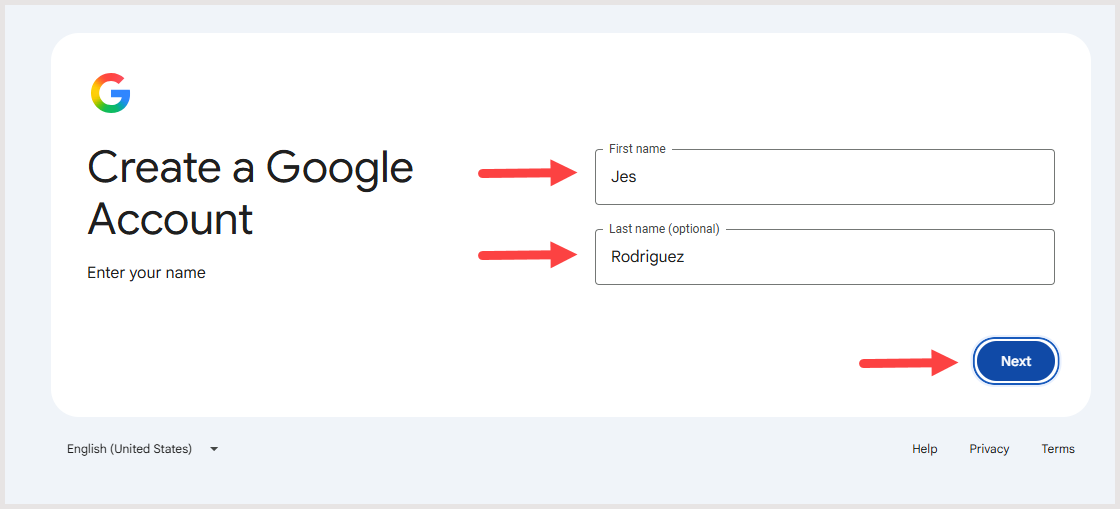
- Fill out First and Last name fields, then click Next
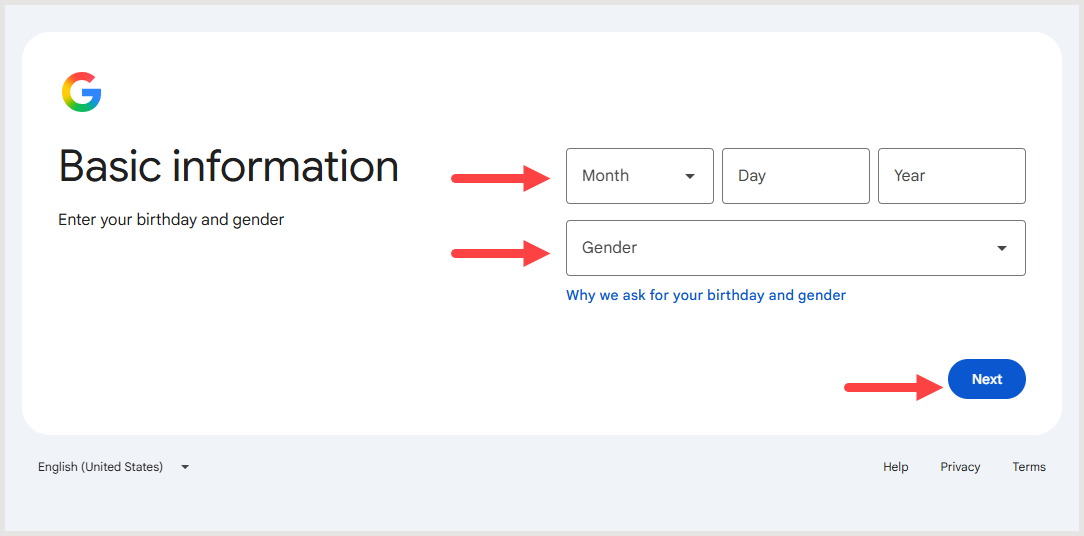
- Complete the fields under Basic information, then click Next
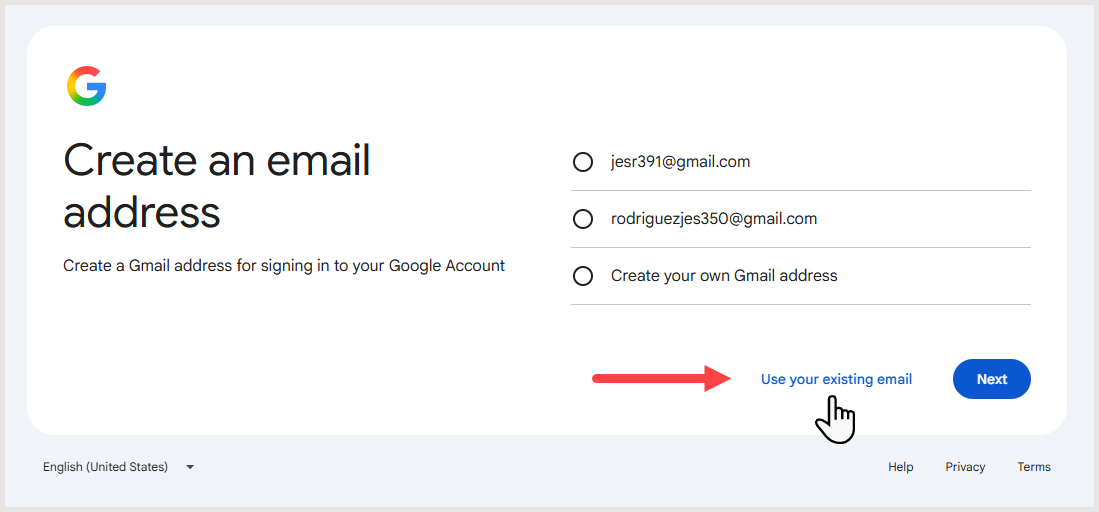
- Click Use your existing email
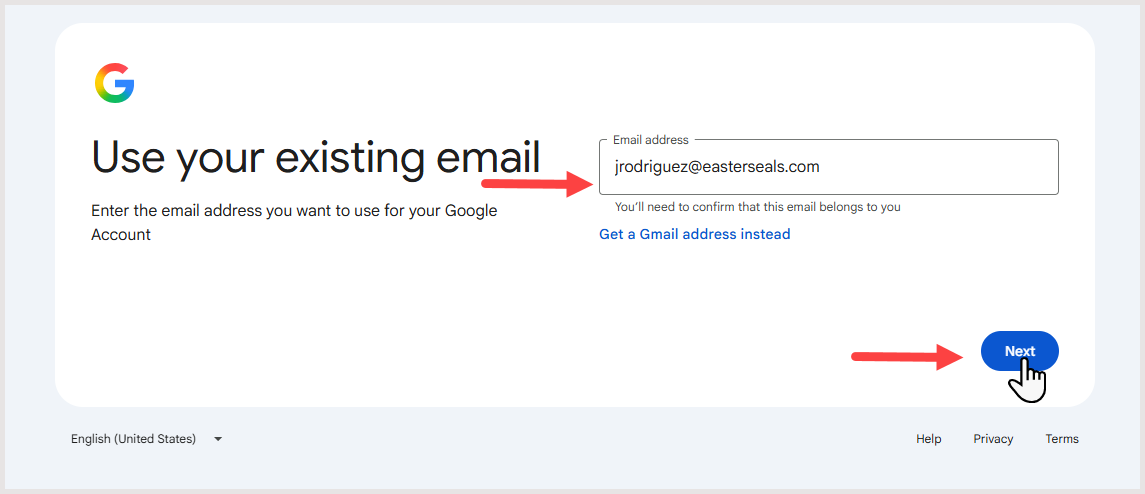
- Enter your Easterseals email address, then click Next
- Continue following the prompts and accept the creation of your Google account with a company email address
- Open the email from Google regarding your new account and click the confirmation link in the email to activate your Google account
Was this article helpful?
That’s Great!
Thank you for your feedback
Sorry! We couldn't be helpful
Thank you for your feedback
Feedback sent
We appreciate your effort and will try to fix the article